Shopping a Walmart order

Locating an item
Interactive store map
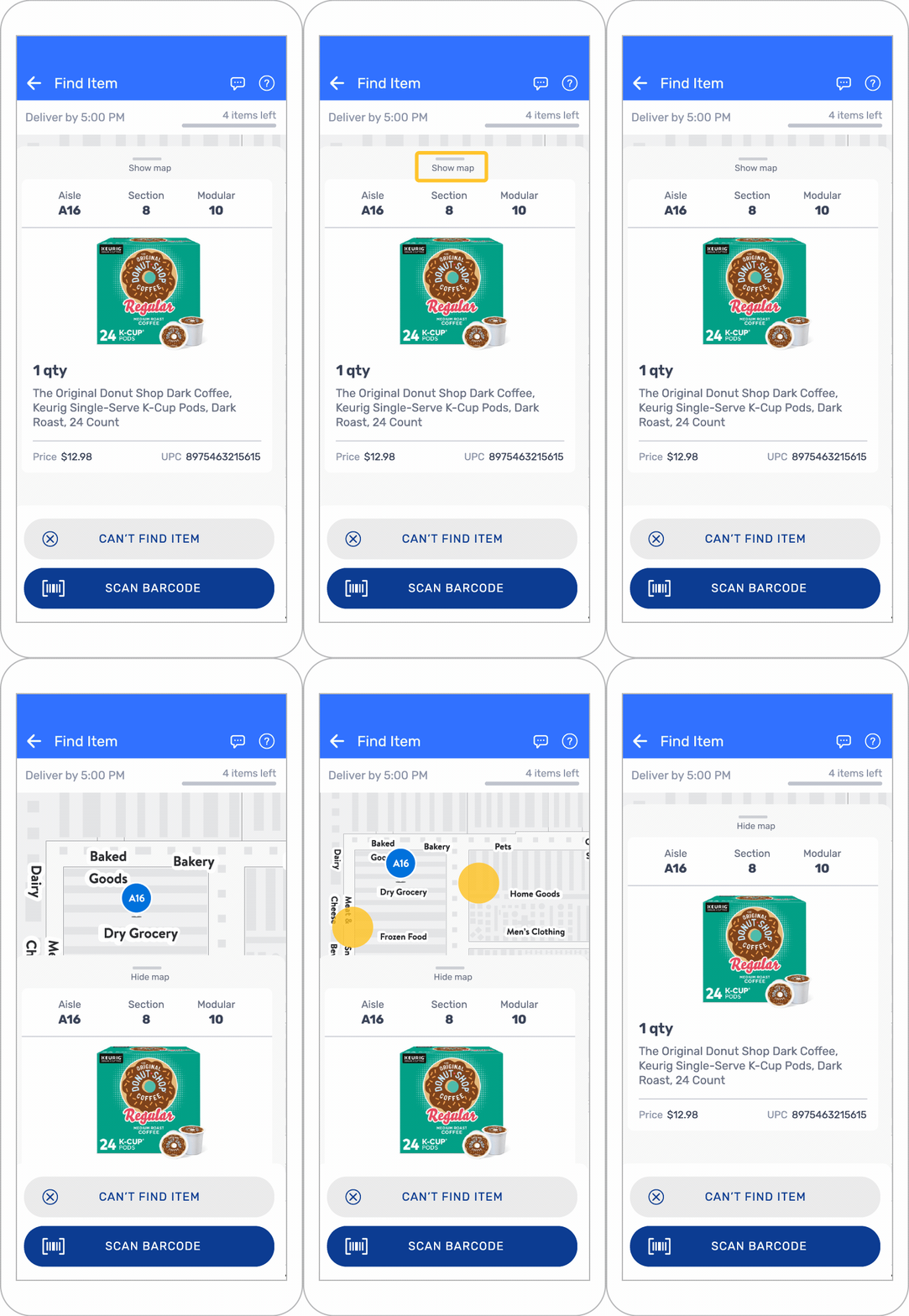
- The interactive store map can be used to help locate items.
- The zoom feature allows the map to be moved to better understand a store’s layout.
Item location details
- For each item a customer requests, a picture of the item may be available along with the aisle number, section number, and modular number.
- Some items may be located quickly based on familiarity with the store layout.
- Aisle, section, and modular numbers can be used to help locate items throughout the store.
Section numbers
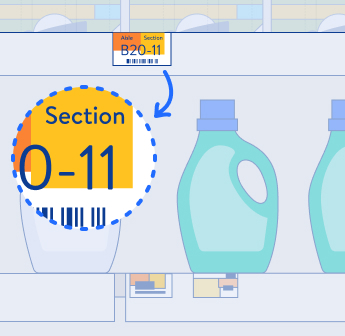
- Section labels can be used when looking for an item within an aisle.
- Section labels are highlighted in yellow on item price labels on shelves.
Modulars
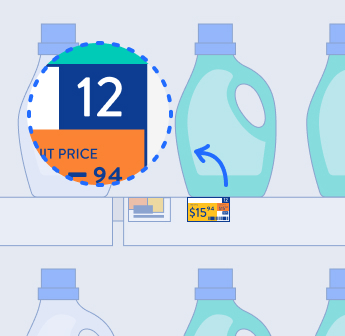
- Modular shelf labels display numbers on the top-right of each item’s price sticker.
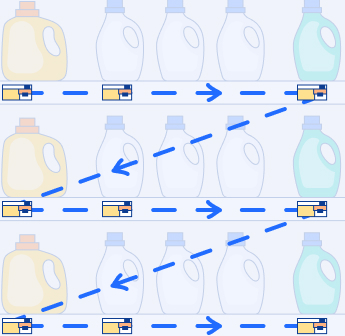
- Modular numbers display from left to right.
End-of-aisle displays
- A three-digit section number may indicate that an item is located in an end cap or display.
- End caps are located at the end of an aisle facing outward.
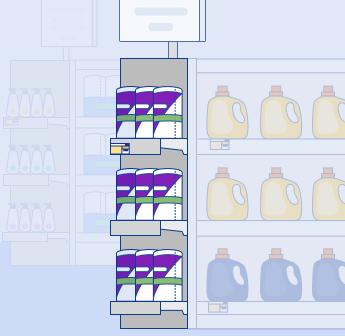
- End caps may use section numbers such as 100 or 200 on the shelf label.
Feature displays
- Each display includes a two-letter code to help identify its location.
- Feature displays are located in certain areas of the store and often highlight popular items.
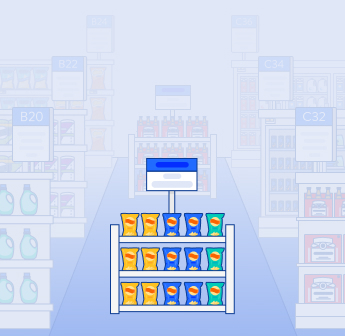
Display codes:
- GR: Grocery section
- MD: Middle section
- GM: General merchandise section
- BK: Back of the store
- FT: Front of the store
In-store item location assistance
In some Walmart stores, additional features may be available in the Spark Driver™ app to help locate items:
Item Location Assist
- The app may display your location and the item location on a map.
- A notification banner may appear to help you get closer to the item.
Flash Digital Tags
- Where digital shelves are installed, Flash can be used in the app to trigger a yellow flashing light on the shelf label.
- This may help identify items in busy aisles.
Tips for shopping a batched order
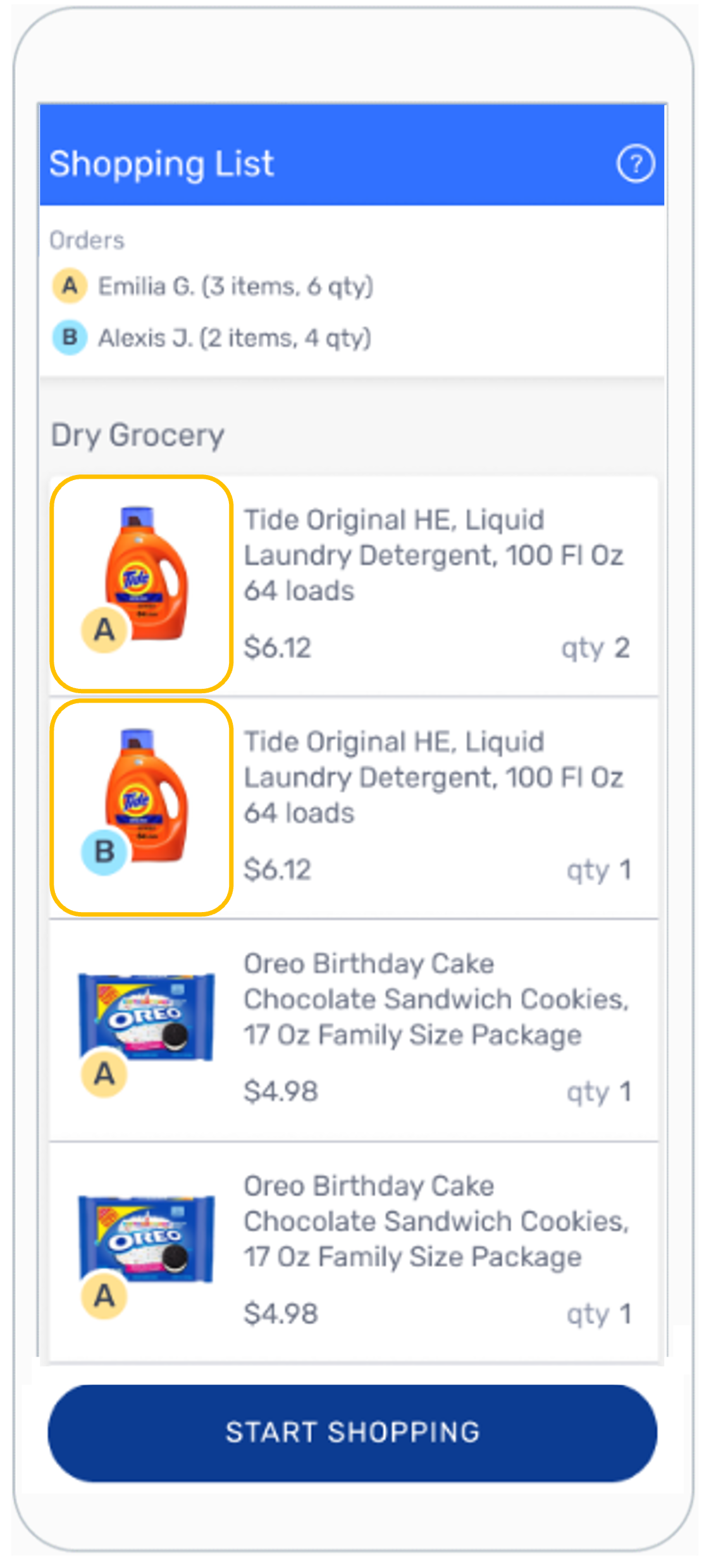
- Items in the order may be labeled with a different letter for each customer.
- START SHOPPING can be used to begin shopping a batched order.
- The item shopping page may display a corresponding letter to indicate which customer each item belongs to.
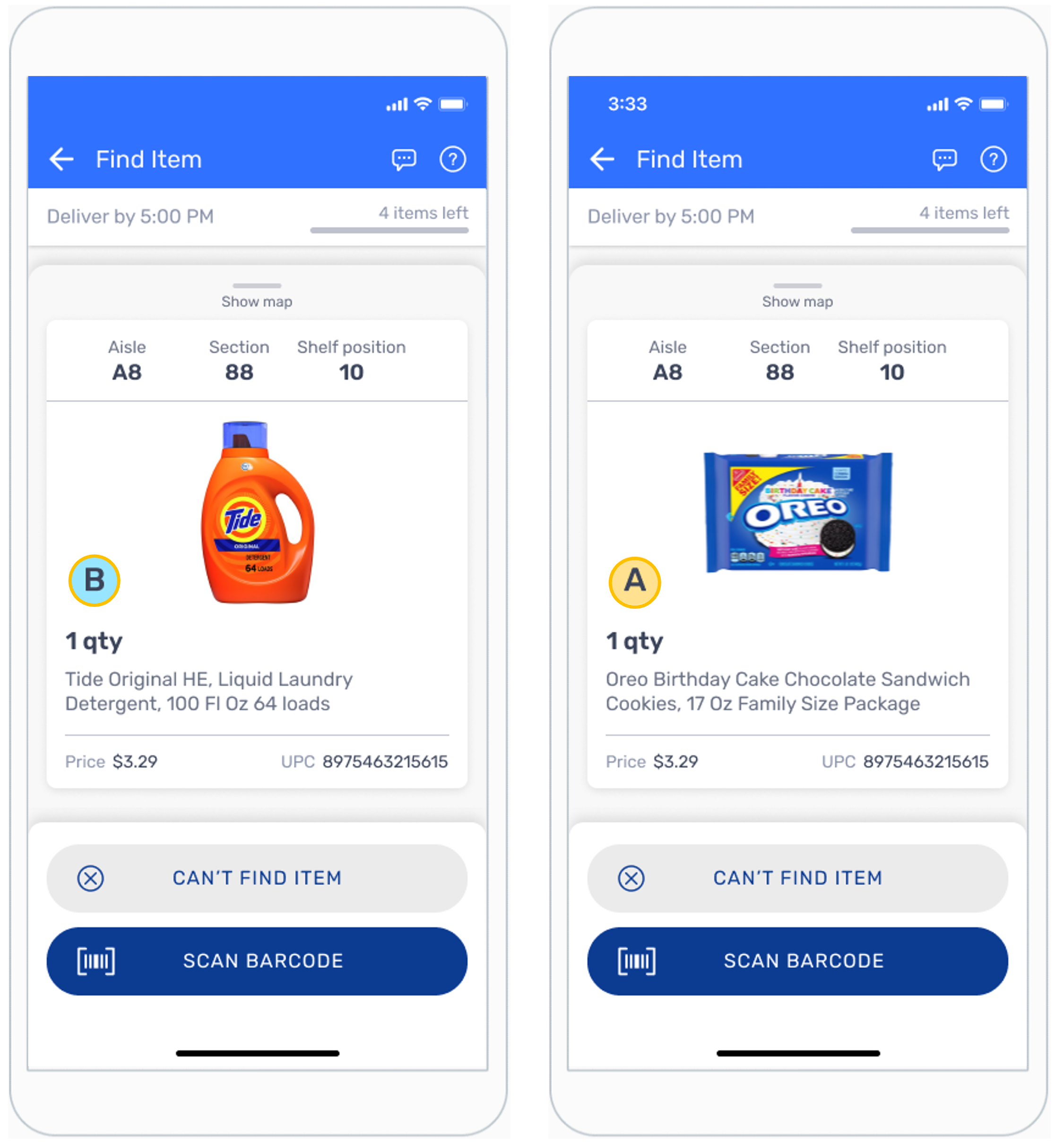
- A suggested shopping flow may be available in the app, and items can also be shopped in any preferred sequence.
- Separating each order’s items into different areas of the shopping cart may be helpful.
- The back arrow can be used to revisit the item list while shopping.
